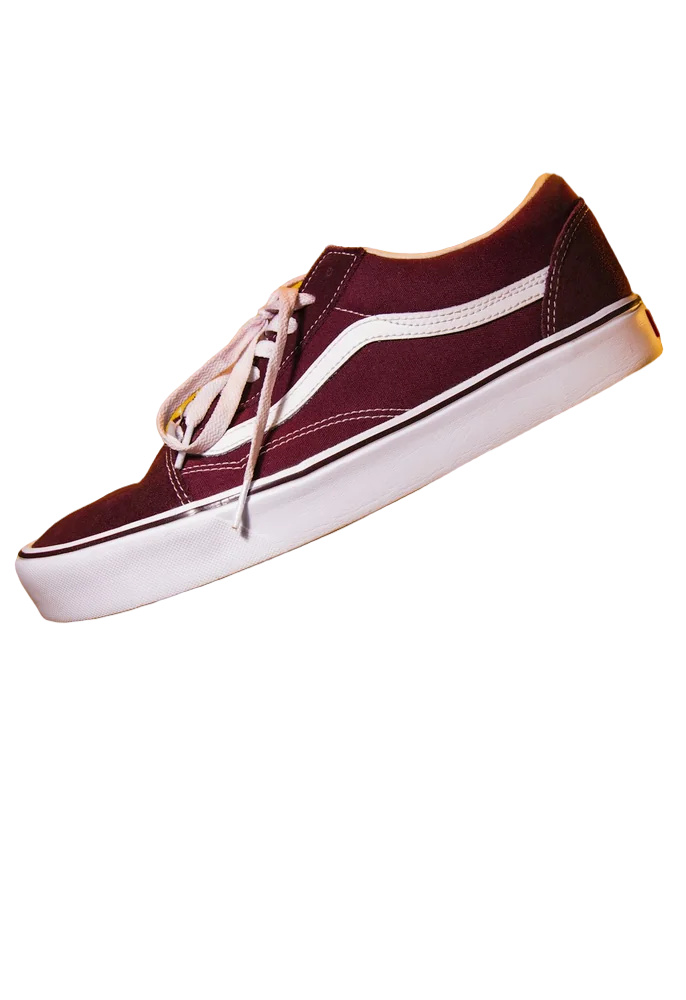
Word shares the same Remove Background tool as PowerPoint. It's fine for a logo on a white box, and painful for a photo of a person.
The built-in method
- Click the image.
- Open Picture Format and choose Remove Background.
- Correct the magenta areas with Mark Areas to Keep / Remove.
- Click Keep Changes.
The cleaner method
For photos, especially of people and pets, remove the background first:
- Use our image background remover.
- Download the transparent PNG.
- In Word, Insert → Pictures and choose it.
- Set Wrap Text to In Front of Text or Tight so text flows around the subject, not around an invisible rectangle.
That last step is the secret to the magazine-style layouts where text hugs the outline of a photo.
Common uses in Word documents
- Headshots on CVs and proposals
- Product images in quotes and catalogues
- Signatures on letters (see our guide to transparent signatures)
- Logos in headers and footers
FAQ
Why does text wrap around a box instead of my cut-out?
Choose Tight wrapping, then Edit Wrap Points if needed. Word uses the transparent outline once the image is a PNG with real transparency.
Will the background stay transparent in a PDF?
Yes, when you save or export the document as PDF.