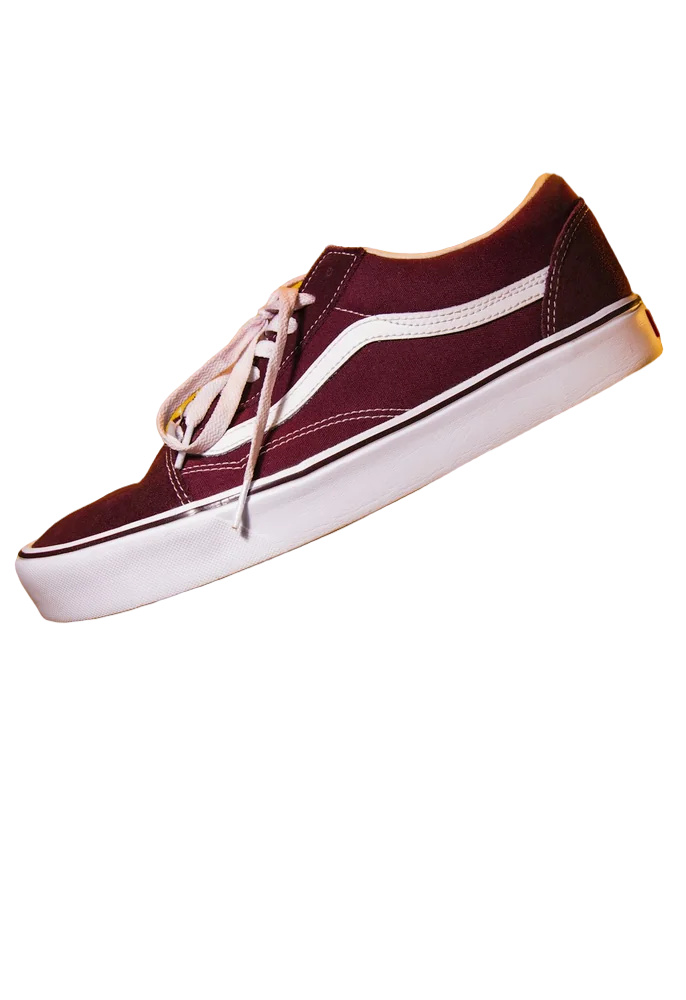
Removing the background from a photo can instantly make it cleaner, more professional, and easier to use across websites, social media, presentations, online stores, and marketing materials. If you are a beginner, you do not need expensive editing software or advanced Photoshop skills to cut out an image background. With free online tools and a few simple steps, you can create a transparent or new background in minutes.
Why Remove Background from an Image?
For beginners, the biggest advantage is simplicity. This means you can achieve results that once required detailed selection, masking, and layer editing.
What Does Background Removal Mean?
Background removal means separating the main subject of an image from everything behind it. The unwanted area is deleted, leaving either a transparent background or a replacement background.
An automated AI editor generally analyzes edges, colors, shapes, and visual patterns to determine which parts belong to the subject. Some tools also let you refine the result manually. This is particularly helpful when a photo contains hair, fur, glass, shadows, thin objects, or backgrounds with colors similar to the subject.
How to Remove Background for Free Online
The easiest approach is to use a browser-based editor. You normally upload a JPG, PNG, or similar image, let the tool process it, review the cutout, and download the finished file. Removing background can therefore be completed without installing complicated software.
Start by choosing a high-quality image. A well-lit photograph with a clear difference between the subject and the background usually produces the cleanest result. Avoid heavily compressed images when possible because blurry edges can make automatic detection less accurate.
Next, upload the image to a trusted online background removal service. The tool will process the picture and generate a cutout. Check the outline carefully before saving it. Look around the hair, fingers, clothing edges, wheels, leaves, and other small details because these areas are more likely to contain mistakes.
If the editor provides erase, restore, brush, or edge-refinement controls, use them to correct small problems. Once the result looks natural, select a transparent background if you want to place the subject into another design. Finally, download the image in a format that preserves transparency.
Background Remove Tools Beginners Can Try
There are many web-based editors designed for people who do not have professional photo-editing experience. The term background remove is also common in searches. A background remover can automate the first cutout, while manual tools help with corrections.
When comparing tools, look beyond the automatic cutout. Check whether the free version allows transparent PNG downloads, whether image quality is reduced, whether manual editing is available, and whether there are limits on image size or daily usage.
For example, a beginner may search for an AI background tool when they need to isolate a product for an online listing. Someone editing social media graphics might prefer a tool that combines background removal with templates, text, and other design features.
How to Get Better Background Removal Results
Automatic tools work best when the original photo is reasonably clear. Before uploading an image, consider improving lighting or choosing another photograph if the subject blends into the background. A strong contrast between foreground and background makes the separation easier.
Pay special attention to fine edges. Hair and fur can appear cut off if the software cannot distinguish individual strands. Transparent objects such as glass may also require manual adjustments because they can visually overlap with the background.
These simple habits can improve the final result:
- Use a sharp, well-lit image with a clearly visible subject.
- Inspect the edges at a larger zoom before downloading the final file.
- Use manual erase or restore tools when automatic detection misses small areas.
- Keep a copy of the original image so you can repeat the process if necessary.
Remove Background for Different Types of Images
For e-commerce, removing the original background can help create consistent product listings. For social media, isolated subjects can be combined with colorful templates or campaign artwork. For presentations, a transparent image can fit naturally into slides without a distracting rectangular box.
Remove BG vs. Traditional Photo Editing
People also use the short search term remove bg when looking for quick online tools. Results vary, so focus on output quality and privacy rather than the name alone.
Traditional editors provide extensive control through layers, masks, selections, brushes, and other tools. They are excellent for complex projects but can have a steeper learning curve. Automated services are designed to make common tasks faster.
A free tool is usually enough for simple images and everyday graphics. Professional editors become more useful for precise retouching, compositing, shadows, and detailed edge work.
If you searched for remove background io, you're in the right place: RemovingBackground.io gives you free transparent PNG previews with no watermark, and HD downloads when you need them. Whatever tool you choose, check its export quality, usage terms and privacy policy rather than picking one just because it appears first in search results.
Common Mistakes to Avoid
Beginners often download the first result without checking the edges. This can leave unwanted fragments, missing parts of the subject, or a visible halo. Another common mistake is saving a transparent image in a format that does not preserve transparency.
Do not judge the cutout only against the editor’s preview. Test it against the background where you plan to use it. Also avoid repeatedly compressing and re-saving the image, because this can reduce quality and make edges look rough.
Another mistake is assuming every photo can be perfectly processed automatically. Images with complicated overlaps, motion blur, low light, or similar foreground and background colors may require manual correction. Knowing when to refine the result is more valuable than expecting one-click perfection.
What Can You Do After Removing the Background?
Once the background is removed, the subject becomes much more flexible. You can place it on a solid color, a gradient, another photograph, a presentation slide, a product card, or a website banner. You can resize and position it without carrying the original background into the design.
This is where background-removal workflows can help creators, small businesses, students, and marketers. A single transparent image can be reused in multiple designs, helping maintain a consistent visual identity.
If your goal is a professional result, keep the original dimensions whenever possible and export the highest-quality file available. For designs that require transparency, PNG is generally a practical choice. If transparency is not needed, another format may be suitable depending on where the image will be published.
Final Thoughts
Learning to remove background from an image is much easier than it used to be. A background-removal tool can handle many everyday photos automatically, while manual controls help you fix difficult edges. The key is to start with a good-quality image, inspect the cutout, refine details when necessary, and save the final file in the right format.
The best beginner tool is easy to understand, produces a clean result, and matches the intended use. With a little practice, background removal can become a quick part of your everyday image-editing workflow.
Frequently Asked Questions
Can I remove a background from an image for free?
Yes. Many online tools offer free background removal for common image-editing tasks.
What image format is best for a transparent background?
PNG is a common choice because it can preserve transparent areas.
Can background removal work on hair and fur?
Yes, but fine details can be challenging. Use manual edge-refinement tools when needed.
Is an online background remover safe to use?
It depends on the service. Check its privacy policy and terms before uploading personal or confidential images.
Can I remove a background without Photoshop?
Yes. Browser-based editors can handle many background-removal tasks without requiring Photoshop or advanced editing skills.