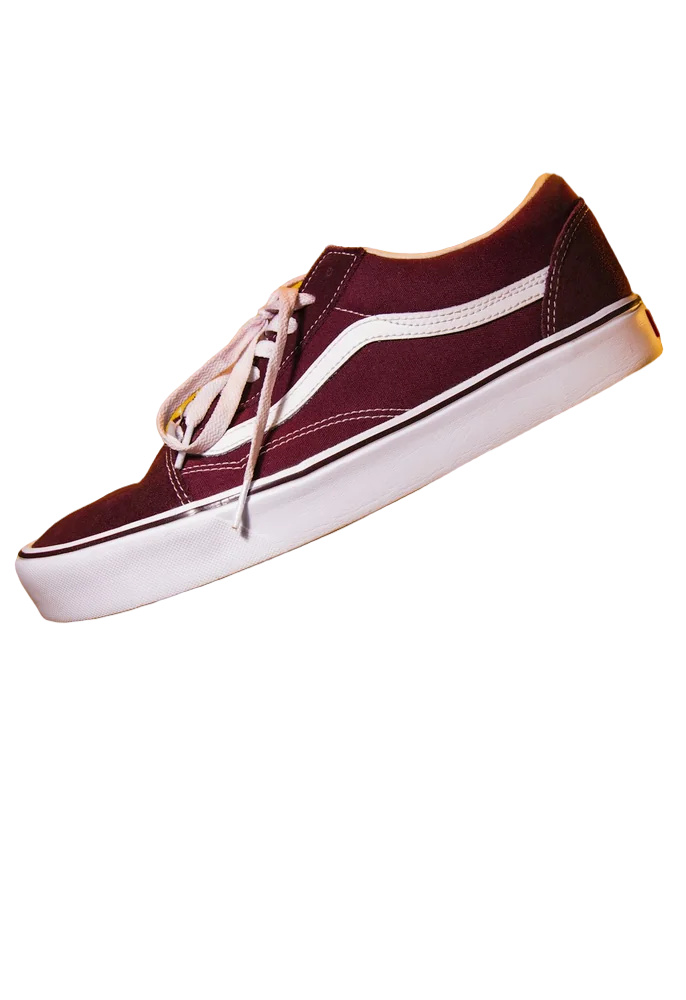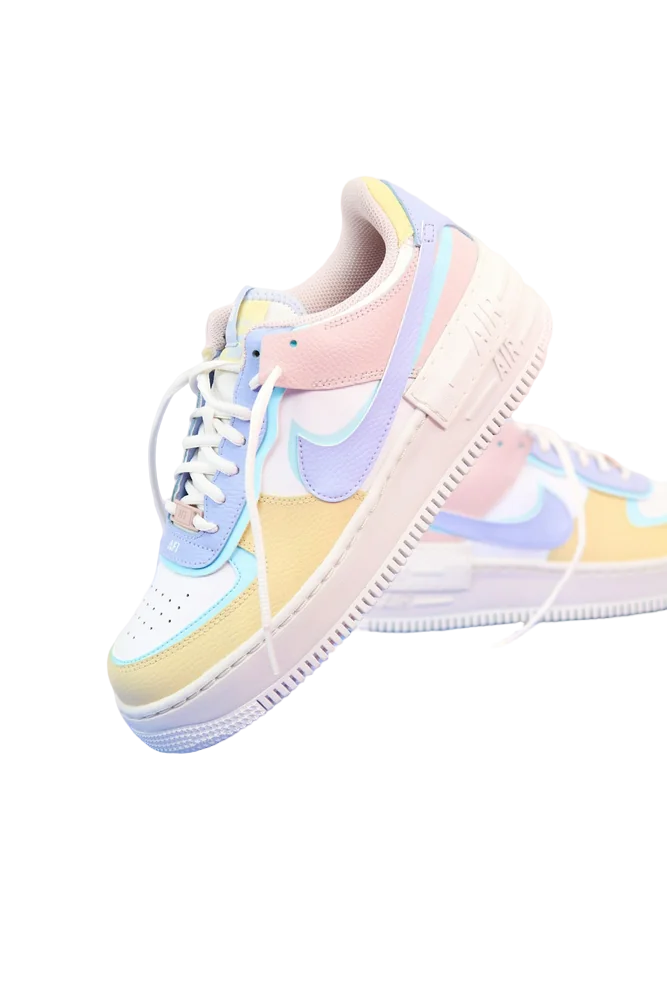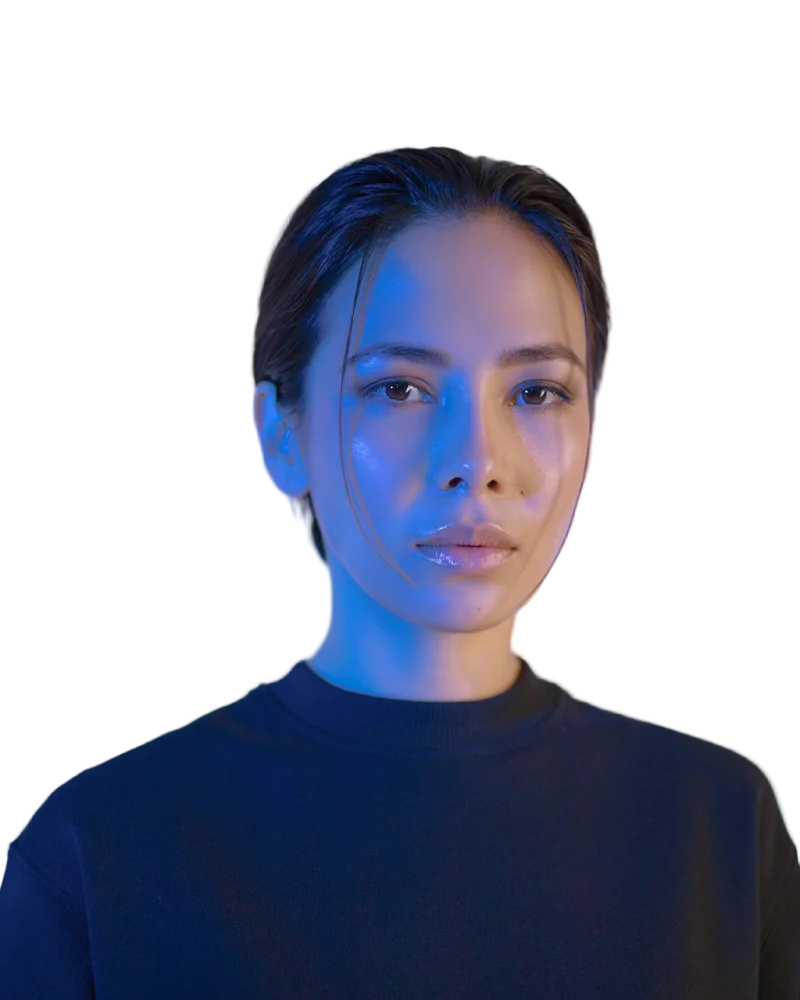
If you want to Remove Background from a photo, you no longer need Photoshop or advanced photo-editing skills. Today, several online tools and simple editing platforms can separate a subject from its original background within seconds. Whether you are preparing product photos, creating social media graphics, designing presentations, or making profile pictures, you can achieve a clean result using free and beginner-friendly solutions.
Why Remove Background Without Photoshop?
Photoshop is a powerful image-editing application, but it can feel complicated for someone who only wants to isolate an object or person. Traditional methods involve selection tools, layers, masks, brushes, and detailed edge adjustments. For a simple task, learning all these features may take unnecessary time.
Modern background-removal technology makes the process much easier. AI-powered editors can identify the main subject, distinguish it from surrounding elements, and create a transparent background automatically. Most browser-based tools require only an image upload and a few clicks.
This approach is useful for students, content creators, online sellers, marketers, photographers, and small businesses. It also works well when you need to prepare several images quickly without installing desktop software.
How to Remove Background from a Photo Without Photoshop
The simplest method is to use an online background-removal service. These platforms typically use artificial intelligence and image-recognition technology to identify the foreground and separate it from the background.
Before starting, select a reasonably clear photograph. Images with good lighting, sharp edges, and visible contrast between the subject and its surroundings usually produce better results.
Upload the photograph to your chosen editor and allow the automatic processing to finish. Within a few seconds, the original background should disappear, leaving the main subject isolated. Some platforms display a transparent checkerboard pattern to show that the background has been removed.
Do not immediately download the result. First, zoom in and inspect the edges. Look particularly closely at hair, fingers, clothing, wheels, leaves, glasses, and other fine details. If the tool includes erase or restore controls, use them to correct any areas that were accidentally removed or retained.
After checking the cutout, choose the output format according to your purpose. PNG is generally suitable when you need transparency, while JPG can be useful when you want to place the subject against a solid background.
How Does an Online Background Remover Work?
A background remover uses image-processing algorithms to identify the difference between the foreground subject and its surroundings. Many modern services rely on AI models trained to recognize people, products, animals, vehicles, and other common objects.
The software analyzes visual characteristics such as edges, colors, shapes, contrast, and object structure. It then creates a mask that separates the subject from the background.
This process is much faster than manually tracing an object with a selection tool. However, automatic technology is not perfect. Complex photographs can still require human correction.
For example, a person standing against a similarly colored wall may be difficult to separate accurately. Fine hair against a busy background, transparent objects, shadows, and overlapping subjects can also challenge automated systems.
That is why a good editing platform should provide both automatic detection and basic manual controls.
What Types of Photos Can You Edit?
Background removal is useful for many types of images. Product photography is one of the most common examples because online stores often need clean product images that focus attention on the item.
Portraits can also benefit from a transparent background. You can place a person over a new color, photograph, gradient, or graphic design. Social media creators can use isolated objects in thumbnails, advertisements, posters, and promotional content.
Here are some common uses:
- E-commerce product images, catalogues, and marketplace listings.
- Profile pictures, social media posts, thumbnails, and promotional graphics.
- Presentations, educational projects, invitations, flyers, and website designs.
Background Remove vs. Manual Editing
A background remove tool is generally designed for speed and convenience. Instead of manually outlining an object, you upload an image and allow the software to identify the subject automatically.
Manual editing, on the other hand, gives you more control. Professional applications allow users to create detailed selections, adjust masks, refine edges, and work with multiple layers. This is useful when the final image requires pixel-level precision.
For everyday projects, automated editing is often enough. If you are preparing a simple product photograph or social media image, there may be little reason to spend time learning complicated software.
For professional advertising, detailed composites, or images with extremely difficult edges, a combination of automatic processing and manual refinement can produce a better result.
Can You Use Remove Background Tools on Mobile?
Yes. Many online image editors work directly through a mobile browser, so you can process photographs from a smartphone or tablet. This is especially convenient when you take a product or portrait photograph with your phone and need to edit it immediately.
The basic process remains similar: open the editor, upload your image, wait for automatic processing, review the result, make corrections if available, and save the final file.
Some mobile applications also provide additional features such as background replacement, filters, templates, cropping, resizing, and text overlays. However, always review an app's permissions and privacy practices before uploading personal photographs.
What About Remove BG and Other Online Tools?
The search phrase remove bg is commonly used by people looking for quick ways to isolate subjects from photographs. Several services offer similar functionality, but their free features, export limits, image quality, and editing controls can differ.
You may also see RemovingBackground.io (often searched as remove background io) while researching online options — that's us. Before choosing any platform, examine its current features rather than relying only on its name or search ranking. Check whether transparent downloads are available, whether the free version adds restrictions, and whether your image is stored or processed according to a privacy policy.
For casual projects, a free tool may provide everything you need. For commercial work, however, it is worth checking licensing terms and permitted uses before publishing the edited image.
How to Get a Cleaner Cutout
The quality of the final result depends partly on the original photograph. An AI editor can only work with the visual information present in the image. A blurry or poorly lit photograph may therefore produce less accurate edges.
Choose photos where the subject is clearly visible. Good contrast between the subject and background is particularly helpful. Avoid images where important parts of the subject blend into surrounding colors.
After processing, inspect the result carefully. Look for leftover background fragments around the edges and check whether important details have been removed. A subtle halo around hair or clothing can become noticeable when the subject is placed on a contrasting background.
If the editor offers edge refinement, use it carefully instead of repeatedly erasing large areas. Small adjustments usually provide a more natural appearance.
Common Mistakes Beginners Should Avoid
One common mistake is choosing the lowest-quality original photograph. Compression artifacts and blurry edges make accurate subject detection more difficult.
Another mistake is assuming that every image will be perfect after one click. AI-based tools are helpful, but complicated photographs may require additional adjustments.
Avoid downloading an image without checking its resolution and file format. If you need a transparent background, make sure the selected format supports transparency. Also keep the original photograph so you can return to it if the first edit does not look right.
Finally, do not judge an isolated subject only against a checkerboard preview. Place it over the background where you intend to use it. Small edge problems can become much easier to notice against a new color or image.
Removing background: What Can You Do Next?
Once you have a transparent subject, there are many creative possibilities. You can add a new background, create a promotional banner, build a product catalogue, design a social media post, or combine several subjects into one composition.
You can also use transparent images in presentations and websites without carrying an unwanted rectangular background around the subject. This gives designers greater flexibility when positioning photographs.
The technique known as Removing background has therefore become a practical part of everyday digital design. You do not need to become a professional graphic designer to use it effectively.
Final Thoughts
Learning to Remove Background from a photo without Photoshop is now straightforward. Online AI-powered editors can handle much of the difficult work automatically, making the process accessible to beginners. The best results come from starting with a clear image, checking the generated edges, correcting small imperfections, and selecting an appropriate output format.
You do not always need expensive software for simple image-editing tasks. With the right online solution and a little attention to detail, you can create clean, professional-looking cutouts for products, portraits, social media, websites, and creative projects.
Frequently Asked Questions
Can I remove a photo background without Photoshop?
Yes. Online AI editors can automatically separate the subject from its background without requiring Photoshop.
Is it possible to create a transparent background for free?
Yes. Some free tools allow you to download images with transparent backgrounds, although features and limits vary.
Which format should I use for transparency?
PNG is a common choice because it supports transparent areas.
Can AI remove backgrounds from hair and fur?
Yes, but fine details can be challenging. Always inspect and refine delicate edges when necessary.
Can I remove a background using my phone?
Yes. Many browser-based and mobile editing tools allow background removal directly from a smartphone.