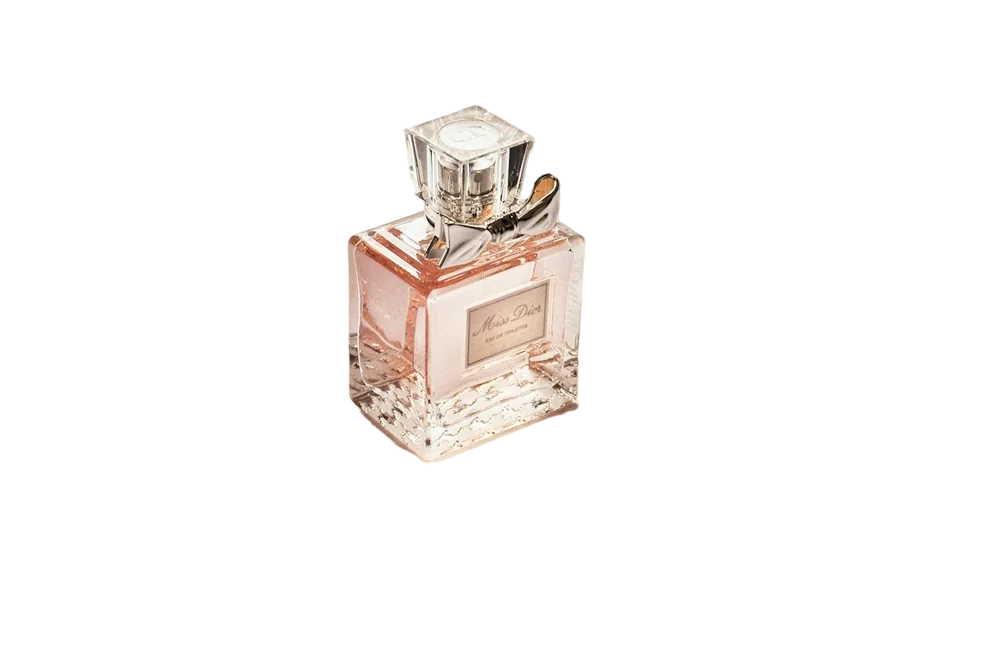
Product managers, marketers and founders spend a surprising amount of time making screenshots look presentable. Background removal is a quick win for a few common jobs.
Isolating a device mockup
Got a photo of a phone showing your app, sitting on a desk? Remove the background and you have a clean device image to drop onto slides and landing pages. Upload it to the image background remover — paste it straight from your clipboard with Ctrl+V.
Cutting out a UI element
For a single button, card or widget from a screenshot, cropping is usually enough. Background removal helps when the element has a shadow or rounded corners over a busy background you don't want.
Photos of products on screens
If you're showing hardware — a laptop, a tablet, a smart speaker — a clean cut-out on your brand colour looks much more polished than a desk photo.
Paste, process, paste back
The fastest workflow:
- Take a screenshot (it goes to your clipboard on most systems).
- Press Ctrl+V on RemovingBackground.io.
- Download the PNG.
- Drag it into your deck.
A caution about text-heavy screenshots
Background removal looks for a main subject. A full-page screenshot of a website doesn't have one, so results can be unpredictable. Crop to the element you want first.
FAQ
Can I paste a screenshot directly?
Yes — press Ctrl+V (⌘V on Mac) on the page.
Will text in the screenshot stay sharp?
Yes, the subject's pixels aren't changed — only the background is made transparent.