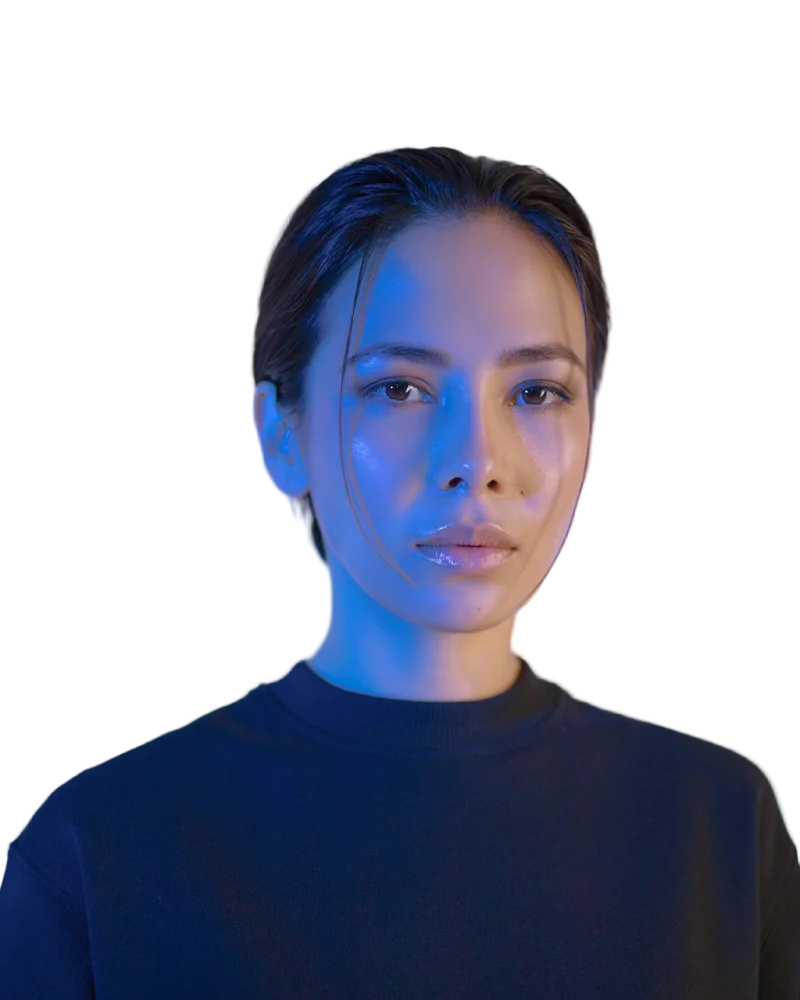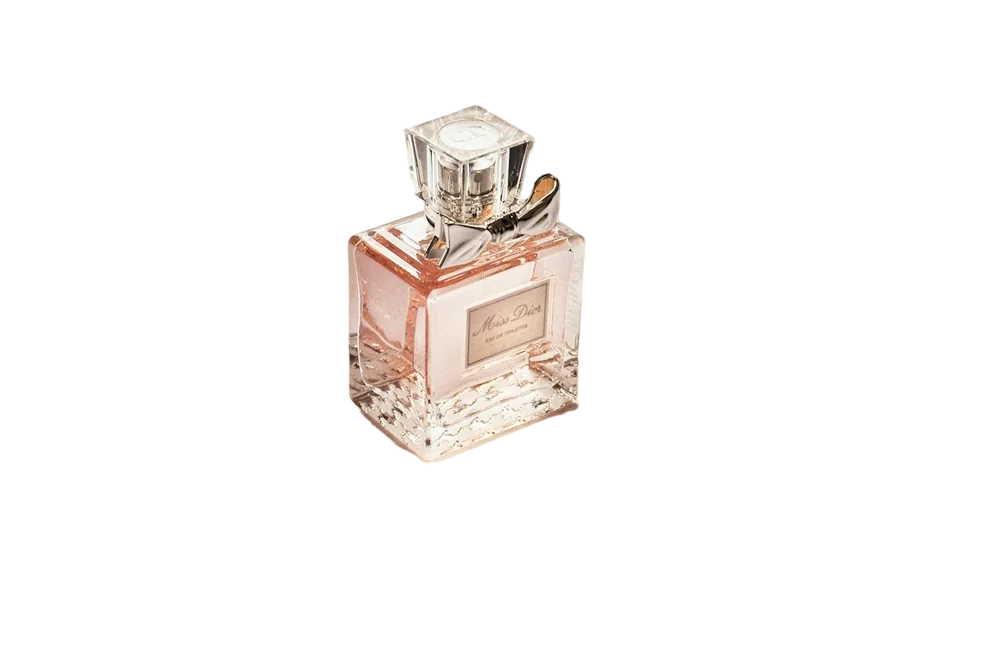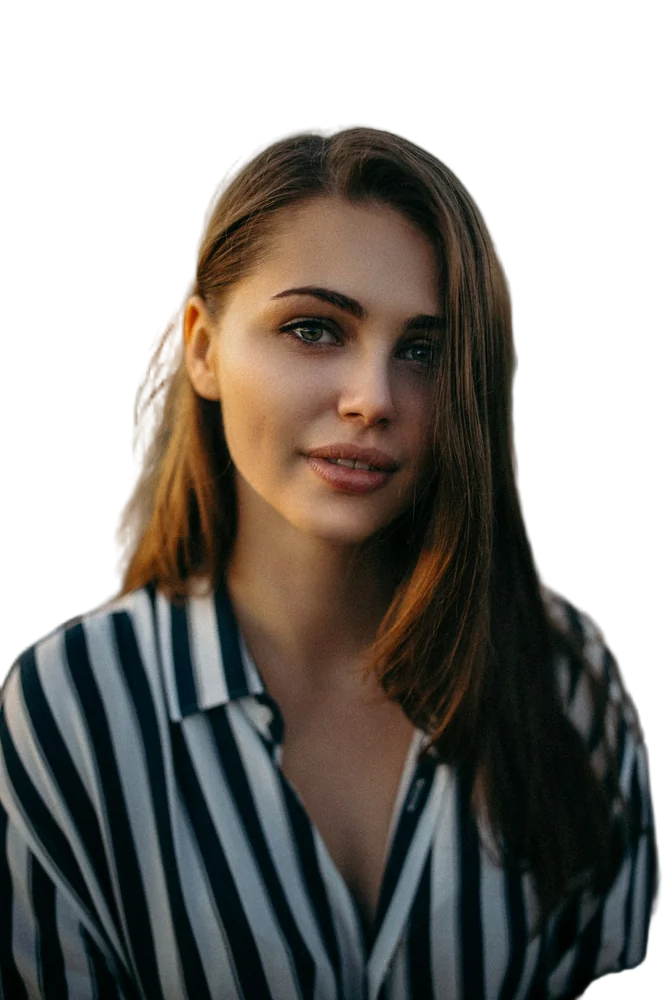
Portrait mode is one of those phone features you forget to switch on until after you've taken the perfect photo. Good news: you can add the effect afterwards, and it often looks better than the phone's version.
How it works
Portrait mode keeps the subject sharp and blurs everything behind it. To do that after the fact, you need to know exactly where the subject ends — which is what a background remover figures out. Once the subject is separated, the original background can be blurred behind it.
Steps
- Upload your photo to the photo background remover.
- If it's a person, choose Person.
- Under Background, tap the blur swatch (it shows a blurry version of your photo).
- Download.
Why it can look better than the phone
Phone portrait modes guess depth from tiny lenses and often struggle with hair, glasses and hands — you've probably seen blurry ears or a sharp patch of background next to someone's head. A dedicated cut-out with soft hair edges usually handles those boundaries more cleanly.
When to use blur instead of a colour
- When the location matters (a holiday, an event) but shouldn't distract
- For natural-looking profile pictures
- For product photos in a real setting
When not to
If the background is very messy or the subject is small in the frame, a solid colour or a new background usually looks cleaner.
FAQ
Can I control how strong the blur is?
The editor applies a strong, smooth blur that works for most photos. For fine control, download the transparent PNG and blur the background yourself in a design app.
Does it work on group photos?
Yes, as long as everyone is in the foreground.