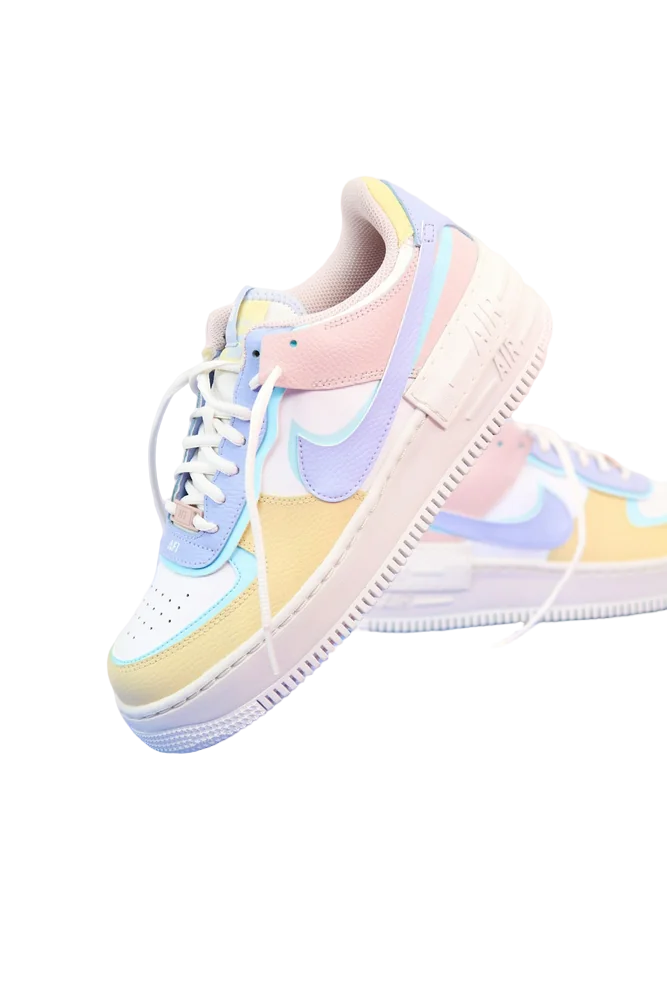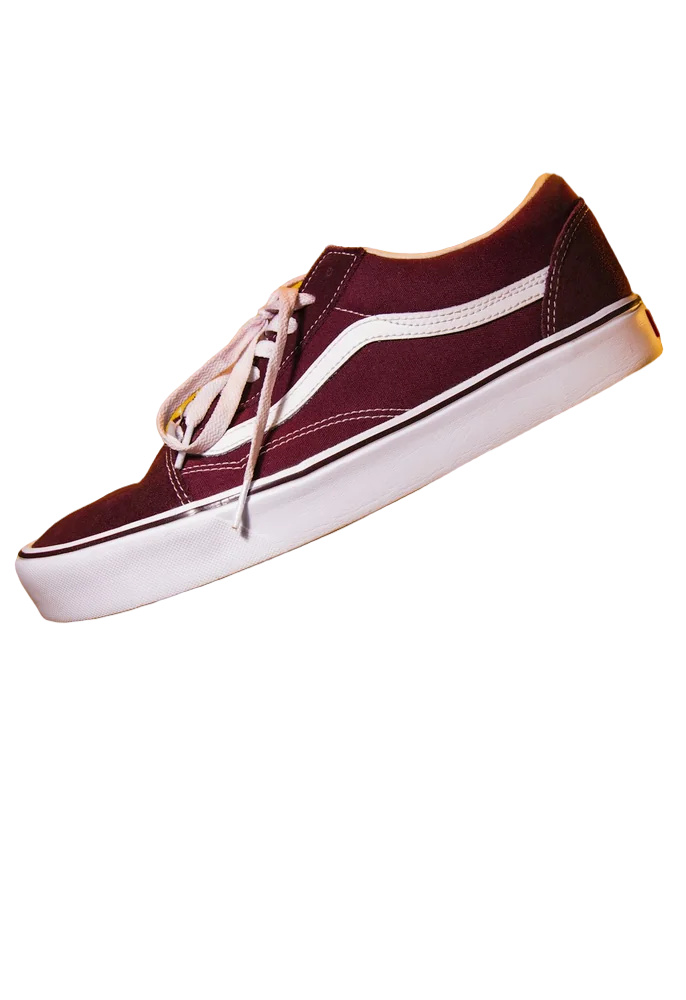
Want to remove background free without making your photos blurry, pixelated, or less professional? Background removal is now easier than ever because AI-powered image editors can separate subjects from their surroundings within seconds. However, simply deleting a background is not enough. Choosing the right tool, image format, resolution, and export settings is essential if you want to preserve the original quality.
Whether you are preparing product photos, social media graphics, portraits, website images, or marketing materials, you can create a clean transparent image without expensive editing software. This guide explains how to do it while keeping your image sharp and detailed.
Why Image Quality Matters When You Remove Background Free
When editing a photograph, quality can be lost at several stages. Uploading a low-resolution image, using excessive compression, resizing the subject repeatedly, or downloading an image in a poor-quality format can all affect the final result.
The goal is not simply to delete unwanted pixels. You also want to preserve important details around the subject, including hair strands, clothing edges, product outlines, shadows, and small textures.
Modern AI editing technology can make this process much easier. Instead of manually tracing an object pixel by pixel, an automated editor analyzes the photograph and creates a subject mask. The quality of this mask has a major influence on how natural the final cutout appears.
A good workflow therefore starts with a high-quality original and ends with an appropriate export format.
How to Remove Background Free Without Reducing Quality
The first step is to choose the best original photograph available. If possible, use the full-resolution image directly from your camera or smartphone rather than a screenshot or heavily compressed copy.
Upload the photograph to a reliable online editing platform and select its automatic background-removal feature. The software will analyze the image and separate the foreground from the background.
Once processing is complete, inspect the result before downloading it. Zoom in around complicated areas such as hair, fur, fingers, jewelry, thin straps, leaves, and product edges. These details can sometimes be incorrectly removed or left partially connected to the original background.
If the editor provides brush, erase, restore, or edge-refinement controls, use them for small corrections. Avoid making large unnecessary selections because they can cause the software to remove useful details.
When the cutout looks correct, select a high-quality export option. If you need transparency, PNG is usually a practical format because it can retain transparent pixels without adding a solid background.
Choose the Right Image Before Editing
The quality of the source image has a direct impact on the final result. An AI tool cannot recreate every detail if the original photograph is already blurry or highly compressed.
For the best results, choose an image with good lighting, clear subject edges, and sufficient resolution. Strong contrast between the subject and its background can also make automatic detection more accurate.
For example, a product photographed against a plain wall is generally easier to process than a product surrounded by objects with similar colors. Likewise, a portrait with a clearly defined outline is easier to separate than a poorly lit photograph with motion blur.
Before uploading an image, check its dimensions and file size. Do not enlarge a tiny image simply to make it appear high resolution. Upscaling may increase dimensions, but it cannot restore details that were never present.
Use a Free Background Remover Carefully
A free background remover can be useful when you need a quick cutout without purchasing professional editing software. Many browser-based platforms use artificial intelligence to detect people, products, animals, and other foreground objects automatically.
However, free does not always mean unlimited. Some platforms may restrict resolution, add download limitations, or provide fewer editing controls. Others may compress the final image.
Before processing an important photograph, check the available export settings. If the tool offers different resolution options, choose the highest suitable quality available.
It is also worth checking privacy practices before uploading personal or confidential photographs. A reputable service should provide clear information about how uploaded images are processed and stored.
Why PNG Is Useful for Transparent Images
File format plays an important role in maintaining quality. PNG is widely used for transparent images because it supports an alpha channel, allowing the background area to remain transparent.
JPEG, on the other hand, does not support transparency in the same way. Saving a cutout as JPEG can therefore result in a solid background being added.
PNG is especially useful for logos, product images, portraits, website graphics, presentations, and social media designs where the subject needs to be placed over another background.
However, PNG files can be larger than compressed JPEG files. If transparency is not necessary, another format may be more appropriate depending on where the image will be used.
How to Preserve Resolution During Editing
Resolution refers to the amount of visual detail contained in an image. If you repeatedly resize and export a photograph, its quality can gradually deteriorate, particularly when using lossy compression.
Try to perform all necessary editing before the final export. Keep the original file untouched and create a separate edited version.
If you need multiple sizes, generate them from the highest-quality version rather than resizing an already compressed copy. This helps preserve sharper edges and finer details.
For websites, you may need to balance image quality with file size. Extremely large files can slow down page loading, while excessive compression can make the subject look soft. Choose dimensions appropriate for the final display rather than automatically using the largest possible file.
Background Remover Free Tools: What to Look For
When comparing a background remover free option, look beyond the automatic cutout. A useful editor should provide a reasonable combination of detection accuracy, export quality, ease of use, and editing controls.
Pay attention to whether the platform supports high-resolution downloads. Some tools may show an excellent preview but provide a smaller file when using the free version.
Also check whether manual refinement is available. Automatic detection is convenient, but the ability to restore missing areas or erase unwanted fragments can make a significant difference.
Consider these factors before choosing a tool:
- Original and maximum supported image resolution.
- PNG or other transparent export options.
- Manual edge-refinement and correction features.
- Compression levels and download restrictions.
- Privacy policies and image-processing practices.
How to Remove Background Online Without Losing Detail
If you want to remove background online, start with the highest-quality source image and avoid unnecessary conversions. Upload the original file, process it once, inspect the cutout, and export it using the highest suitable quality setting.
After downloading, open the finished image separately rather than judging it only from the editor's preview. Compare it with the original to make sure important details have not disappeared.
Pay particular attention to edges. A white or gray halo can appear around a subject when the software leaves traces of the original background. This is particularly noticeable when placing a light-colored subject against a dark background.
For complex photographs, use the editor's manual tools to refine these areas. Small corrections around the outline can make the final image look significantly more natural.
Avoid Common Quality-Loss Mistakes
One of the biggest mistakes is starting with a compressed image downloaded from a social media platform. Such images may already have reduced resolution and visible compression artifacts.
Another mistake is repeatedly converting between formats. Each unnecessary export can affect sharpness or file size. Keep an original master copy and use it whenever you need to create a new version.
Do not enlarge a low-resolution cutout excessively. If the image will be used for a large banner or print project, start with a sufficiently high-resolution photograph.
You should also avoid judging quality only by file size. A smaller file is not automatically better. For transparent graphics, preserving clean edges and sufficient detail is often more important than achieving the smallest possible file.
What About Remove Background from Image Quality?
When you remove background from image files, the editing process should preserve the subject's original dimensions whenever possible. If an editor automatically reduces the output resolution, the final photograph may appear softer than the source.
Look for an export option that maintains the original or highest available resolution. After downloading, check the image dimensions and compare the subject's edges with the original photograph.
If you are editing product images for an online store, consistency is also important. Use similar dimensions, cropping, lighting, and output quality across your product catalogue. This creates a more professional appearance.
For portraits and creative graphics, maintaining natural hair and clothing details can be more important than simply achieving a perfectly transparent background.
Can Remove BG Tools Maintain Original Quality?
The term remove bg is commonly used for quick background-removal searches, but different tools can produce very different results. Some prioritize speed, while others focus on high-resolution output and detailed edge detection.
If you are researching remove bg services, test a non-sensitive image first. Compare the downloaded result with your original and examine resolution, transparency, sharpness, and edge quality.
You may also encounter tools described as remove background online solutions or services designed specifically for automated cutouts. Regardless of the platform, the same principle applies: choose the highest-quality input, avoid unnecessary compression, and inspect the final export.
Final Thoughts
Learning to remove background free without sacrificing image quality is mainly about using the right workflow. Start with a high-resolution original, choose a suitable editing tool, carefully inspect the edges, and export the finished image in an appropriate format.
You do not need expensive software for many everyday projects. With careful editing and sensible export settings, you can create sharp, professional-looking transparent images for websites, product listings, social media, presentations, and creative designs.
The technique known as Removing background can be simple, but preserving quality requires attention to the details before, during, and after editing.
Frequently Asked Questions
Can I remove a background without losing quality?
Yes. Start with a high-resolution original and use an editor that supports high-quality exports.
Is PNG better for transparent images?
Yes. PNG supports transparency and is commonly used for background-free graphics.
Why does my cutout look blurry?
The original image may be low resolution, or the editing tool may have compressed the downloaded file.
Can free tools export high-resolution images?
Some can, but free plans may impose resolution or download restrictions. Check the tool's current export options.
How can I get cleaner edges?
Use a sharp source image, inspect the cutout at high zoom, and use manual edge-refinement tools when available.