A recruiter friend once told me she can tell how seriously someone takes their job search from their LinkedIn photo alone. Harsh, maybe, but a blurry selfie with a kitchen cupboard in the background isn't doing anyone any favours.
The good news: you don't need a photographer. You need decent light, a friend (or a timer), and a minute with a background remover.
Taking the photo
Face a window. Soft daylight from the front is the most flattering light there is. Avoid overhead lights — they create shadows under the eyes.
Frame from mid-chest up. LinkedIn crops to a circle, so leave a bit of space above your head.
Camera at eye level or slightly above. Prop your phone on a stack of books rather than holding it low.
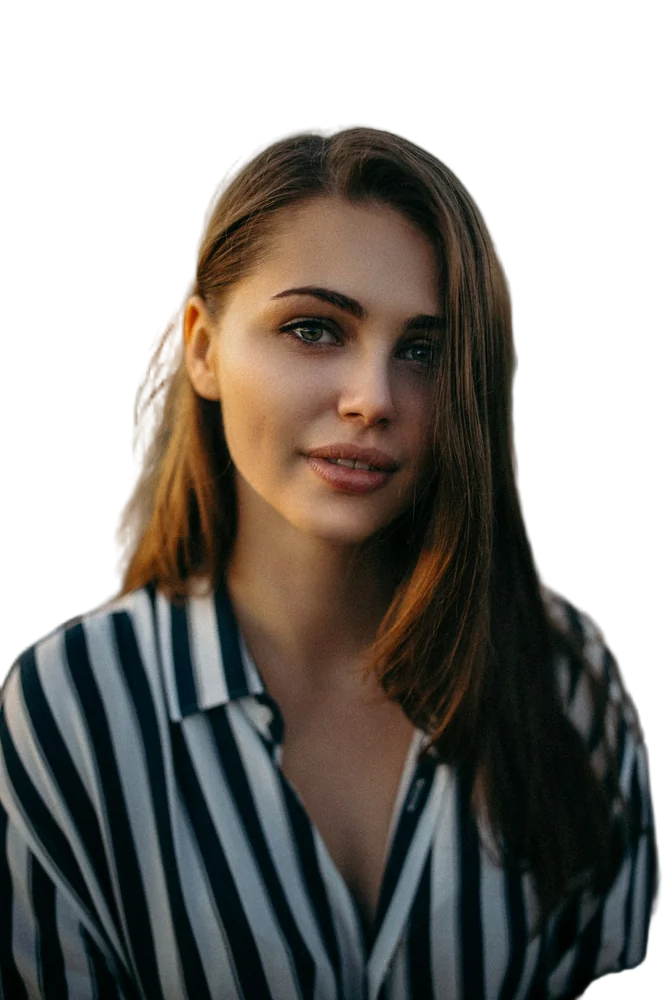
Wear something plain. Solid colours look better than busy patterns, and they're easier for any background remover to separate cleanly.
Take twenty shots. Seriously. Expressions change fast, and one of them will be great.
Choosing a background
Once you have a photo you like, upload it to our photo background remover and choose the Person subject — it's tuned for hair and shoulders.
Then pick a background. A few that work well on LinkedIn:
- Soft grey or warm stone — neutral, professional, works for any industry
- Muted blue — trustworthy, common in finance and consulting
- A subtle gradient — feels like a studio backdrop
- Your company's brand colour — great if your whole team uses the same one
What I'd avoid: pure white (it blends into LinkedIn's interface), bright saturated colours, and busy photo backdrops.
Make the whole team match
If you're updating photos for a team page, decide on one background colour and use it for everyone. Process all the photos in one batch — you can drop up to 20 at a time — and the result looks like a professional shoot, even though everyone took their own photo at home.
Size and format
LinkedIn recommends a square image at 400×400 pixels or larger. Our free download goes up to 600×600, which is plenty. Save it as JPG once you've chosen a background.
Before you upload
Look at the photo at thumbnail size. That's how most people will see it — next to your name in comments and search results. If your face is still clear and the background is calm, you're done.
FAQ
Should I use a blurred background instead?
A blurred version of the original background can look great and natural. In our editor, choose the blur option — it gives a portrait-mode effect even if your phone didn't.
Is it okay to use the same photo on my CV?
Yes, if your region expects photos on CVs. A consistent photo across LinkedIn, your CV and your email signature looks polished.